A Practical Guide to Slack Chatbot Integration

Imagine turning your team's central communication hub into an intelligent, 24/7 assistant. That’s the real power behind a Slack chatbot integration. When you connect a custom AI agent directly into your workspace, you’re moving way beyond simple notifications and into a world of powerful, interactive automation.
Why a Slack Chatbot Is a True Game Changer
In any business, we know communication is the engine that drives productivity. But let's be honest, it often becomes a bottleneck. Team members lose valuable time digging for information, asking the same questions over and over, or waiting for answers from colleagues in different time zones.
A Slack chatbot integration tackles this head-on by putting a smart AI assistant right where your team is already working. This isn’t just about adding another bot to a channel. It’s about creating a tool that understands your company’s unique context and knowledge.
For example, a marketing team could ask their bot, "What were the top-performing ad campaigns last quarter?" and get an instant summary with key metrics. This all happens without ever leaving Slack.
Unlocking Productivity with On-Demand Knowledge
The real magic of this integration lies in its ability to deliver instant, accurate information. By training a chatbot on your internal documentation—think wikis, product guides, or past project files—you create a single source of truth that’s always on. This transforms Slack from just a messaging app into your company's digital headquarters, powered by accessible AI.
The impact is significant. With over 42 million daily active users globally and more than 750,000 custom bots already in use, Slack is a non-negotiable platform for modern business. The data backs this up: many remote teams using these integrations report faster resolution times on support requests, and automation typically saves employees several hours per week. You can read more about these Slack statistics to see the full picture.
Key Benefits of Integrating a Chatbot with Slack
We've seen firsthand how connecting an AI agent from a platform like FastBots.ai to a Slack workspace delivers measurable results. It's not just about convenience; it's about a tangible return on your investment in efficiency.
Here's a quick look at the core advantages you gain from a Slack chatbot integration, from productivity boosts to better team support.
| Benefit | Impact on Your Business | Example Use Case |
|---|---|---|
| Instant Internal Support | Drastically reduces the time your HR, IT, and ops teams spend on repetitive questions. | An employee asks, "What's the process for expense reimbursement?" and the bot provides a link to the policy and the correct form. |
| Streamlined Customer Service | For teams using Slack Connect with clients, a bot can provide first-line support, improving response times. | A client in a shared channel asks about a product feature, and the bot instantly answers with a link to the relevant documentation. |
| Automated Routine Tasks | Frees up your team by handling simple, repeatable workflows directly within Slack. | A project manager types "/create-ticket bug in login page," and the bot automatically creates a new ticket in Jira or Asana. |
| Centralized Knowledge Base | Makes company information accessible to everyone, right when they need it, reducing internal friction. | A new hire asks, "Who is the point of contact for payroll?" and the bot provides the name and contact info of the correct person. |
Ultimately, a well-implemented Slack chatbot becomes an indispensable member of the team—one that works tirelessly to make everyone else's job easier.
Setting the Foundation for a Smooth Integration
Before you can build anything great, you’ve got to get your materials in order. A solid Slack chatbot integration is no different—it all starts with a clear plan and the right permissions. Taking a few moments to prepare now saves you from technical headaches down the road and ensures your bot actually adds value from the moment it goes live.
First, you'll need an active FastBots.ai account with a chatbot that's already trained on your data. The quality of your bot's knowledge base is everything here. For example, if you've fed it your internal IT wikis and HR policy documents, it’ll be ready to handle common employee questions with confidence.
Over on the Slack side of things, you must have administrator permissions for your workspace. This level of access allows you to create a new Slack app, which acts as the bridge connecting your chatbot to your team's channels. Without admin rights, you simply won't be able to grant the necessary access for the bot to read messages and post replies.
Defining Your Bot's Role and Location
With the technical prerequisites sorted, let's think strategically. Where will your chatbot "live" and what job will it do? A bot’s effectiveness is often tied directly to its environment.
For instance, a bot designed for customer support might operate in a shared Slack Connect channel with your key clients, giving them instant answers to product questions. It's an excellent way to offer immediate value.
On the other hand, an internal-facing bot would be much more at home in a dedicated #it-support or #ask-hr channel. We've seen many companies use this exact approach to slash the workload on their support teams. You can explore how Slack integration for chatbots can streamline team communication in our other guide.
Actionable Takeaway: Quick Checklist
Before you go any further, pause and create a simple one-page plan.
Primary Function: What is the bot's main job? (e.g., answer HR questions)
Designated Channels: Where will it operate? (e.g.,
#new-hires,#ask-hr)Admin Access: Who has the admin rights to install the app?
Success Metric: How will you know it's working? (e.g., fewer repetitive questions in a public channel)
How to Build and Configure Your Slack App
Alright, this is where the magic really starts to happen. We're about to build the bridge that connects your FastBots.ai agent directly to your Slack workspace. You'll be spending some time in the Slack API dashboard, which might sound a little intimidating, but don't worry. We'll walk through it step-by-step.
First, you need to head over to the Slack API site and create a new app. You'll be asked to give it a name and choose the workspace you want to install it in. Think of this app as the "body" for your chatbot—a container that holds all the permissions and settings. A simple, descriptive name like "Company Support Bot" or "IT Help Assistant" works perfectly.
Once you're in, Slack's API dashboard gives you a clear roadmap of everything you need to set up. This dashboard is your command centre for the entire Slack chatbot integration.
Demystifying OAuth Scopes and Permissions
With your app created, the next critical step is giving it the right permissions, which Slack calls OAuth scopes. These scopes define what your chatbot is allowed to do. It's important to stick to the principle of least privilege here—only grant the permissions your bot absolutely needs.
For a typical AI chatbot, you'll only need a handful of key permissions to get up and running.
app_mentions:read: This one is non-negotiable. It lets your bot see any message where someone specifically tags it with an "@".chat:write: This scope gives your bot the power to post messages and answer user questions.im:history: If you want people to be able to DM the bot for a private chat, you'll need this.channels:history: This allows the bot to read messages from public channels it has been invited into.
Once you grant these permissions, Slack will generate a Bot User OAuth Token. Guard this token carefully; it's the unique key you'll use later to connect your app to FastBots.ai.
Setting Up Event Subscriptions
Now that your bot has its permissions, you need to tell Slack how to get in touch with it. This is done using Event Subscriptions. Think of it like setting up a direct line of communication. You're telling Slack, "Hey, anytime someone @mentions my bot, please forward that message to this specific URL."
That URL is what's known as a webhook, and it's the endpoint where your FastBots.ai agent is listening for new messages. This is the core mechanism that kicks your bot into action in real-time.
Getting this right is what makes a Slack chatbot integration so powerful. With Slack's user base growing and Workflow Builder usage jumping significantly, automating team interactions is no longer just a nice-to-have. You can discover more insights about Slack's automation growth on vantagepoint.io to see just how big this trend is getting.
Connecting Your Fastbots.ai Agent to Slack
You've got your Slack app configured. Now for the fun part: bringing your bot to life. This is where we'll bridge the gap between the app you just built in Slack and your trained FastBots.ai agent. It’s a matter of securely copying a few keys from one place and pasting them into another.
First, you'll need a couple of critical credentials from your Slack app's settings. Head to the "OAuth & Permissions" section in your Slack app dashboard. You're looking for the Bot User OAuth Token. This long string of characters is the password that lets your FastBots.ai agent act on behalf of your Slack app.
Next, you need the App-Level Token. You'll find this under the "Basic Information" section after you’ve enabled Socket Mode. This token opens a secure tunnel between Slack and your bot, which is what allows for real-time communication. You'll need to plug both of these tokens into your FastBots.ai integration settings.
Finalizing the Connection
With the tokens in place, there’s just one piece of the puzzle left: the webhook URL. This is the specific address that Slack uses to push messages and events straight to your chatbot. You'll find this URL in your FastBots.ai dashboard. Simply copy it and then jump back over to your Slack app's "Event Subscriptions" section to paste it in.
This final step completes the circuit. Now, whenever someone mentions your bot in a designated channel, that message gets instantly routed to your AI agent. This is where you really start to see the power of a Slack chatbot integration shine.
Here’s a real-world example: A customer success team trains a FastBots.ai agent on their entire technical knowledge base. When a client asks a question in a shared Slack Connect channel, the bot provides an instant, accurate answer. This frees up the human team to tackle complex issues.
This kind of automation is a game-changer for efficiency. It’s not surprising that many large companies are now using Slack Connect for collaborating with external partners. For customer success teams, this can result in significant deflection rates for technical questions. You can learn more about scaling Slack for customer support and see the numbers for yourself.
Once everything is connected, don't skip the testing phase. Jump into a private channel and send a few test messages to your bot. This quick check can save you a lot of headaches by catching small configuration mistakes before you roll the bot out to everyone.
What to Watch Out For: Limitations and Considerations
Let's be realistic for a moment. A successful Slack chatbot integration isn't just about technology; it's about being honest about what the AI does well and where it falls short. Your bot is excellent at pulling factual answers from its knowledge base. Ask it for a policy document or the latest sales figures, and it's golden.
However, if you throw an emotionally charged or highly nuanced conversation its way, it can stumble. This is where a human touch is irreplaceable.
Understanding this limitation is the first step toward building a system that actually helps people. Your chatbot isn't here to replace your team. It’s a force multiplier, designed to handle repetitive questions so your experts can focus on the tricky stuff. This is exactly why a crystal-clear human handover process is non-negotiable.
Designing a Safe Escalation Path
So, what happens when a user gets frustrated or a question is just too complex for the bot to handle? The bot needs to know when to bow out gracefully. A poorly managed handoff can sour a user's experience faster than no bot at all.
For instance, if someone types "I need to speak to a human," the bot's job should be to trigger a notification to a specific person or a dedicated support channel. This simple rule prevents people from getting trapped in a frustrating loop and makes sure critical issues get attention.
We’ve seen teams nail this by setting up a dedicated
#bot-escalationschannel in Slack. When triggered, the bot drops a message with a link to the conversation and tags the on-call support agent. It’s clean, immediate, and effective.
Privacy and Knowledge Decay
There are a couple of other things to keep on your radar. The first is data privacy. Remember, your chatbot can read every message in the channels it's invited to. That's why it's critical to follow the principle of least privilege—only add the bot to channels where it’s absolutely necessary.
Finally, a chatbot’s knowledge base isn't a "set it and forget it" asset. Company policies evolve, and old information becomes irrelevant. Without consistent maintenance, your bot’s answers can get stale. Scheduling regular reviews and retraining sessions is the only way to keep your bot’s responses sharp, accurate, and genuinely helpful.
Unlocking Advanced Slack Chatbot Automation
Your FastBots.ai chatbot in Slack can be so much more than just a Q&A machine. Think of it as the starting point for powerful, automated workflows that can save your team hours of tedious manual work. By hooking it up to automation platforms like Zapier or Make, you can turn simple conversations into real business actions.
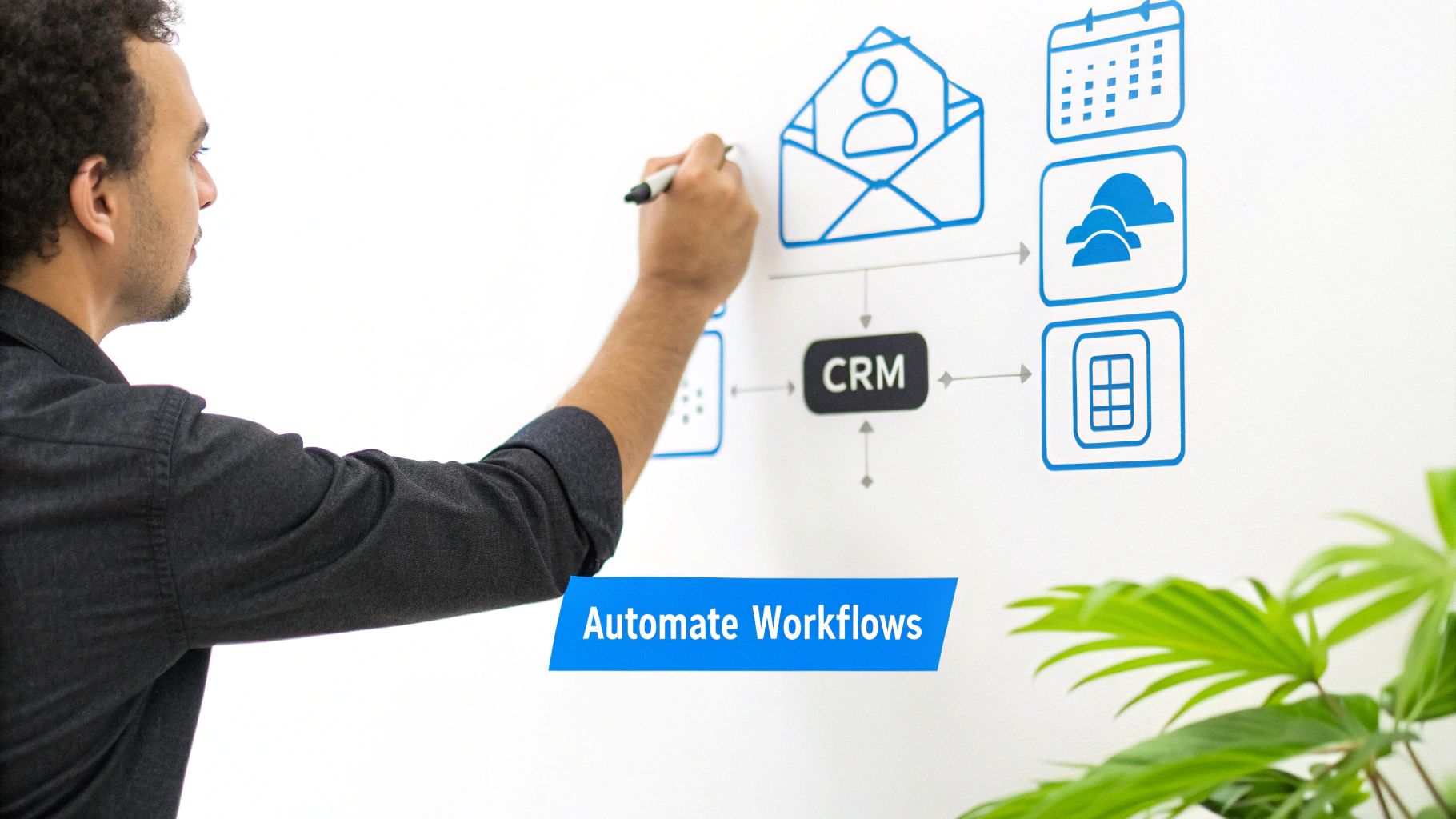
For example, a potential customer asks a complex product question in a public channel. Your bot gives them a perfect answer. Behind the scenes, it also triggers a workflow that creates a new lead in your CRM, assigns it to a sales rep, and even drafts a personalized follow-up email.
From Answers to Actions
This isn't just for sales, either. Picture an employee sending a direct message to the bot to request paid time off. The bot can kick off an automation that instantly adds the request to a shared team calendar and pings their manager for approval.
The trick is to view your chatbot as the trigger for a chain reaction. It listens for specific intents or keywords, then passes that data along to another service. This is how you bridge the gap between a conversation and getting things done.
Actionable Takeaway: Find Your First Automation
Think about one repetitive task your team does every day. Could a simple Slack command kickstart it? For instance, could a project manager type
/log-updateand have the bot grab their update and automatically post it to a tool like Asana or Trello? Starting small is the key to building momentum.
Real-World Automation Examples
The possibilities for this type of Slack chatbot integration are practically endless, and you can tailor them to fit exactly what your team needs.
Here are a few ideas to get you thinking:
IT Support: A user messages the bot, "My VPN isn't working." The bot spots the keyword "VPN" and automatically creates a high-priority ticket in your helpdesk system like Zendesk or Jira.
Marketing: Someone shares a glowing customer quote in a channel. The bot can grab that feedback and add it to a "Testimonials" spreadsheet for the marketing team.
Operations: A team member types
/order-suppliesin a channel. This triggers a workflow that sends a neatly formatted order request directly to the office manager’s email.
Once you start putting these kinds of automations in place, you’ll truly see how to use a bot in Slack to streamline your team communication and make your operations more efficient.
Got Questions About Your Slack Chatbot Integration? We've Got Answers
When you start thinking about plugging an AI chatbot into a tool as vital as Slack, it’s natural for a few questions to pop up. Let's walk through some of the most common ones.
Is My Company's Data Safe?
This is usually the first question, and for good reason. The short answer is yes, as long as it's set up correctly.
A well-designed chatbot integration is built on the principle of least privilege. Your bot only gets access to the specific channels and permissions it absolutely needs to do its job. It can't wander into sensitive conversations or private channels it wasn't explicitly invited to.
Can It Handle Our Global Team's Languages?
This is another big one, especially for distributed teams. What happens when your team in Spain asks a question in Spanish, but your support docs are in English?
With a platform like FastBots.ai, this typically isn't an issue. Modern AI chatbots are built to be multilingual from the ground up. They can often understand and respond in over 95 languages, automatically detecting what language the user is typing in.
How Do We Know If It's Actually Helping?
Great question. You don't want a shiny new tool that isn't pulling its weight. Measuring success is key, and it's simpler than you might think.
Actionable Takeaway: Measure What Matters
Don't get lost in a sea of metrics. We recommend focusing on two things to start: the deflection rate (how many questions the bot answers without needing a human) and the average resolution time. These two numbers will give you a clear picture of the bot's ROI.
Is This a "Set-It-and-Forget-It" Kind of Thing?
Not quite. The most effective chatbots aren't static tools; they're more like digital team members that learn and grow over time.
You should plan for regular check-ins. A quick review of the chat logs once a week can reveal common questions the bot struggled with or new information it needs. A little ongoing maintenance ensures its knowledge base stays fresh and its answers stay sharp.
Ready to see how a smart, secure, and multilingual AI assistant can transform your team's productivity in Slack? Get started with FastBots.ai and build a custom slack chatbot trained on your own data.