A Complete Guide to Chatbots for WordPress

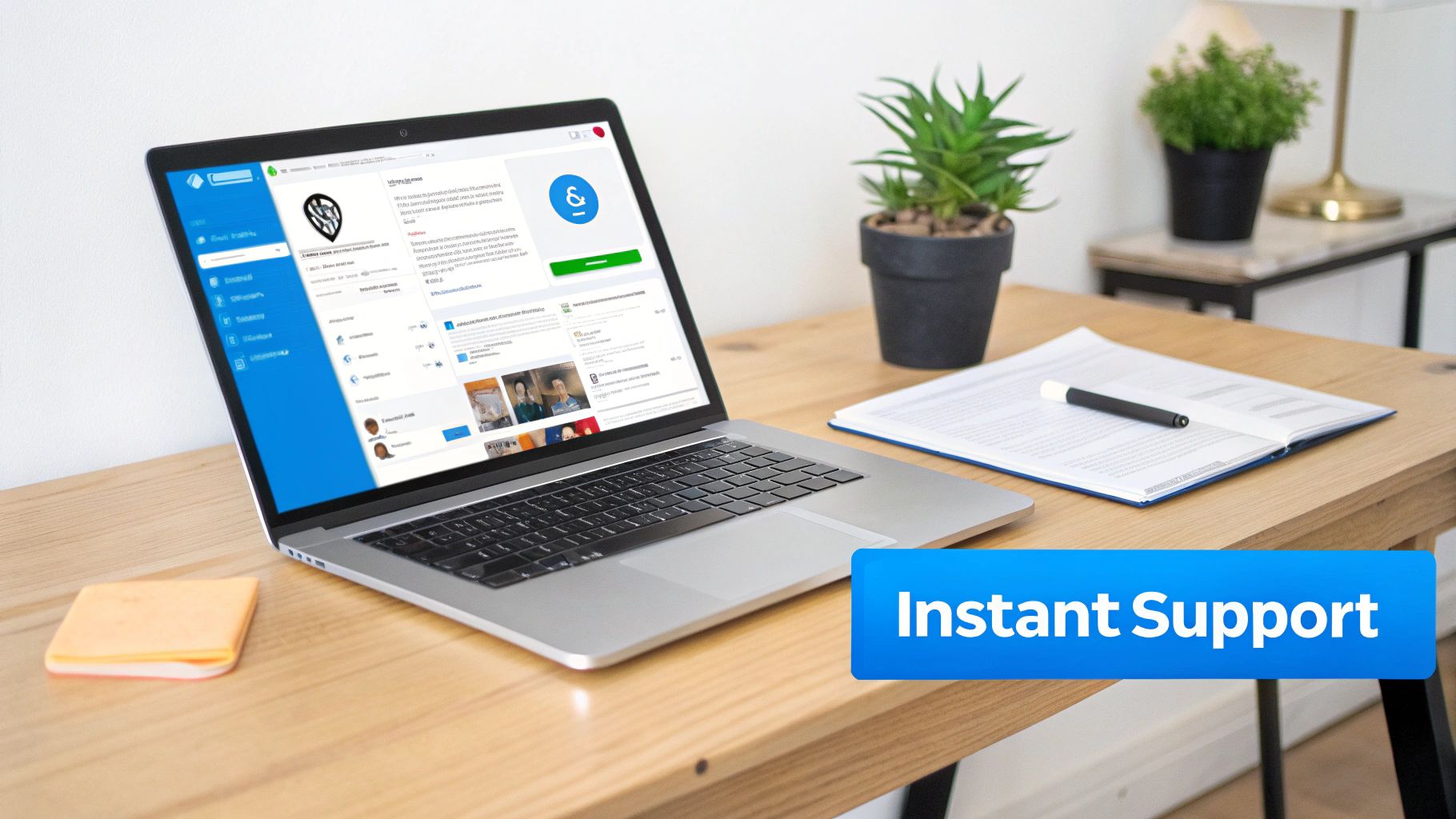
Adding a chatbot to your WordPress site is one of the smartest moves you can make. It's an effective way to offer instant, 24/7 customer support, capture more leads, and put repetitive tasks on autopilot. You're essentially transforming your static website into an interactive hub that meets people where they are—expecting immediate answers.
Why Your WordPress Site Needs a Chatbot
Let's be honest: in today's digital world, patience is in short supply. When a visitor lands on your site with a question, they expect an answer in seconds. A delay of just a few minutes could mean a lost sale or a frustrated user bouncing to a competitor.
This is where an AI chatbot stops being a "nice-to-have" and becomes a strategic tool. Think of it as your tireless employee, working around the clock to ensure no question goes unanswered and every visitor has a smooth experience.
The opportunity here is significant, especially for businesses running on WordPress. Consider this: WordPress powers over 43% of all websites. At the same time, the global chatbot market is projected to grow substantially, from $15.57 billion to $46.64 billion by 2029. This isn't just a fleeting trend; it's a fundamental shift in how businesses interact with their customers online.
Core Capabilities and Features
The great part is you don't have to wait months to see the benefits. An e-commerce store, for example, can use a bot to guide a shopper straight to the right product, which can help reduce cart abandonment rates. For a service business, a bot can qualify new leads and even book appointments, freeing up your sales team to focus on closing deals.
But it goes beyond pure efficiency. A well-designed chatbot can make your brand feel more modern and genuinely helpful, improving the user experience from the moment someone lands on your site. One way to look at a chatbot is as more than just a support tool; it's a versatile engine for sales, marketing, and customer engagement.
Here’s how chatbots for WordPress can fuel your growth:
- Enhanced Lead Generation: Capture visitor information and qualify leads automatically, even when you're offline.
- Improved Customer Engagement: Proactively greet visitors, answer initial questions, and point them in the right direction.
- Operational Efficiency: Handle frequently asked questions, taking a significant load off your support team so they can tackle more complex issues.
For a deeper analysis, exploring the investment value of chatbots for small businesses offers valuable insights. Ultimately, adding a chatbot to your WordPress site isn't just about keeping up—it's about getting ahead.
How to Implement Your Chatbot: Plugin vs. Embedded Service
When you decide to add a chatbot to your WordPress site, you'll face an immediate choice: should you use a dedicated WordPress plugin or embed a script from a specialized service? Both paths lead to a working chatbot, but they're built for different needs and technical comfort levels.
A WordPress plugin often feels like the most direct option. You find it in the WordPress repository, click "install" and "activate," and manage everything from the dashboard you already know. This is a great route if you need a simple, no-fuss solution.
On the other hand, embedding a service like FastBots.ai means adding a small snippet of code to your site. While that might sound technical, it's usually a quick copy-and-paste. This approach often unlocks more power, flexibility, and scalability, since the heavy lifting is handled by a dedicated platform, not your website's server.
When to Use a WordPress Plugin
A native WordPress plugin is woven directly into your site’s ecosystem, which can make setup incredibly fast. For a small business owner or a blogger just starting with automation, a plugin can be an ideal entry point.
For instance, a local bakery could use a simple plugin to field basic questions like "What are your hours?" or "Do you have gluten-free options?" The setup is minimal, and it instantly frees up staff from answering the same phone calls repeatedly.
When to Use an Embedded Service
For businesses that need more advanced features and control, embedding a third-party service is often the better way to go. These platforms are purpose-built to manage complex conversations, connect with other tools like your CRM, and scale as your traffic grows.
Think of a growing e-commerce store. They might use an embedded chatbot to not only answer product questions but also check their inventory system in real-time and seamlessly hand off complex support tickets to a live agent. This kind of deep integration is where an embedded service truly shines. For more guidance, our guide on the best practices for selecting chatbots can offer valuable perspective.
Chatbot Plugins vs. Embedded Services: A Quick Comparison
To help you visualize the trade-offs, here’s a table breaking down the core differences.
| Factor | WordPress Plugin | Embedded Service (e.g., FastBots.ai) |
|---|---|---|
| Ease of Setup | Typically very simple; managed inside WordPress. | Simple copy-paste; configuration happens on a separate platform. |
| Features | Often basic unless you pay for premium versions. | Usually includes advanced AI, deep integrations, and robust analytics. |
| Performance | Can sometimes slow down your website's server. | Minimal impact on site speed since it runs on external servers. |
| Scalability | May be limited as your business and traffic grow. | Built to scale and handle high interaction volumes. |
Your Step-by-Step Guide to Installation and Configuration
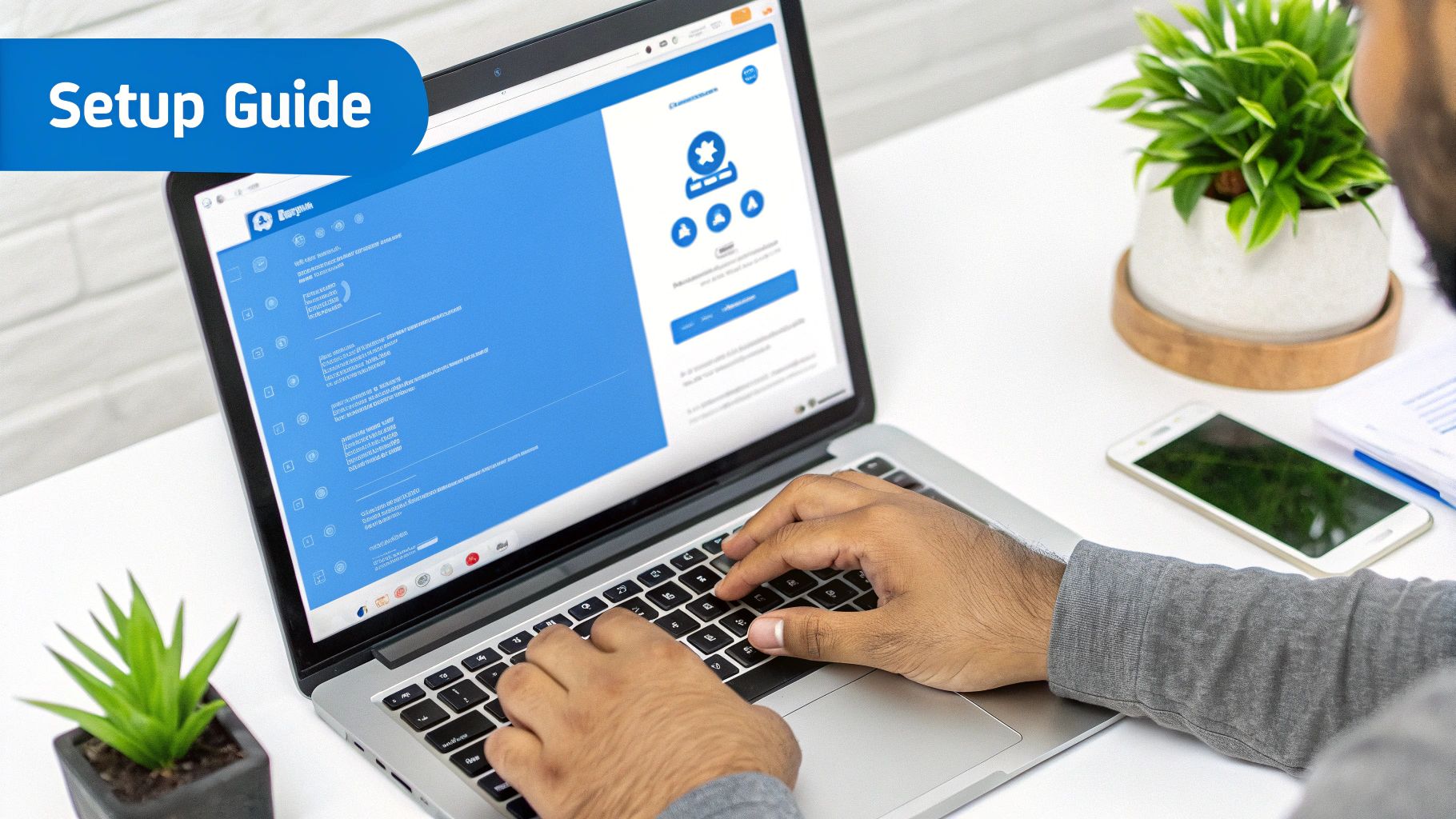
Alright, you've decided whether a plugin or an embedded service is the right move for you. Now for the practical part: getting your chatbot live on your WordPress site. This process is more straightforward than you might think.
Our goal isn't just to add any bot to your website. We want to launch one that feels like a natural extension of your brand. Everything from matching your site's color scheme to crafting the perfect welcome message plays a role in making a great first impression.
Getting Started with a Chatbot Plugin
If you opted for a plugin, your journey begins inside the familiar WordPress dashboard. You'll head over to the 'Plugins' area and search for your chosen chatbot provider. After installing and activating it, you should see a new menu item to guide you. For anyone new to this, a step-by-step guide on how to install a WordPress plugin makes the process simple.
How to Embed a Chatbot Service
For those of you using a dedicated platform like FastBots.ai, the process is slightly different. It involves adding a small snippet of code to your WordPress site. We know "code" can sound intimidating, but it's really just a copy-and-paste job.
Once you’ve built your chatbot and trained it on your knowledge base, you'll get a snippet of JavaScript. All you have to do is paste this code into your website's header or footer. A free plugin like "Insert Headers and Footers" gives you a simple box to paste the code into, so you never have to touch your theme's core files.
Training Your AI Chatbot with Your Data
This is where the magic happens. A chatbot trained on your specific content becomes an invaluable expert working for you 24/7. Modern AI chatbots for WordPress learn from the information you provide. You can upload various sources to build out its knowledge:
- Website Content: Simply provide your URL, and the AI will crawl your pages to learn the content.
- Documents: Upload FAQs, product manuals, or policy documents in PDF or DOCX formats.
- Spreadsheets: If your data is in a CSV or XLS file, you can upload that, too.
Imagine a real estate agency uploading its property listings. When a visitor asks, "Do you have any three-bedroom homes near parks?" the chatbot can pull an accurate answer instantly. Our guide on how to add a chatbot to a WordPress blog walks through these steps in more detail.
Customizing the Look and Feel
Your chatbot should look like it belongs on your site. Take a few minutes to align its appearance with your brand; it makes a huge difference in user trust. Most platforms give you easy-to-use customization options for colors, avatars, and welcome messages. By fine-tuning these details, you ensure the chatbot adds to your website's professional feel.
Boosting Sales with a WooCommerce Chatbot

If you're running an e-commerce store, a chatbot isn't just a support tool—it’s a powerful sales assistant. Adding a chatbot to your WooCommerce store can transform a static shop into a dynamic, interactive buying experience.
Instead of just displaying products, your site can now actively guide customers. Think of it as a personal shopper, asking the right questions to help visitors find exactly what they’re looking for. This personal touch can be a game-changer for conversion rates.
Guiding Shoppers and Answering Questions
Imagine a customer lands on your electronics store, feeling overwhelmed by camera options. A chatbot could pop up: "Are you looking for a camera for professional photography, travel, or everyday use?" Based on their answer, it can instantly recommend the top three models. This immediate, tailored guidance reduces decision fatigue and keeps shoppers engaged.
Recovering Abandoned Carts Proactively
Cart abandonment is a major challenge for online stores. A chatbot can be your secret weapon here. By detecting when a user is about to leave a page with items in their cart, the bot can proactively intervene.
It might offer a small discount or answer a last-minute question about shipping. This simple nudge can be surprisingly effective at recovering sales that would otherwise be lost. Many online retailers see a lift in average order value just by programming their chatbots to suggest relevant upsells.
Actionable Takeaway: Quick Checklist for Your WooCommerce Store
Ready to turn your chatbot into a sales machine? Here’s how you can apply this in your business:
- Product Recommendations: Program your bot to ask guiding questions ("What's your budget?") and suggest products.
- FAQ Automation: Train your chatbot on product specs, shipping policies, and return info for instant answers.
- Upsell & Cross-sell: Create rules for the bot to suggest complementary items. You can find more strategies to implement a chatbot in WooCommerce in our dedicated guide.
- Abandoned Cart Recovery: Set up a trigger for the chatbot to engage users who appear to be leaving with items still in their cart.
What to Watch Out For: Limitations and Considerations
Adding a chatbot to your WordPress site can be a game-changer. But before you get started, it's important to understand the potential trade-offs. Going in with your eyes open helps you build something that actually helps your customers instead of frustrating them.
One of the biggest mistakes we see is over-automation. A chatbot is brilliant for answering common questions and guiding users. It is not, however, a replacement for human empathy or complex problem-solving. Trying to force it to handle every interaction can lead to a clunky experience.
Don't Trap Your Visitors in a Loop
Every chatbot needs an "escape hatch." You should make it obvious how a user can ask to speak with a real person. Burying the "talk to a human" option or creating an endless loop of automated questions is a surefire way to damage your brand's reputation.
Think about it from your customer's perspective. If they're dealing with a frustrating billing error, the last thing they want is to argue with a bot. Making the transition to a human seamless isn't just a feature; it's essential for those high-stakes moments.
This Isn't a "Set It and Forget It" Tool
Your work isn't done once the chatbot goes live. An AI chatbot is only as smart as the information you give it, and that information can become outdated. You have to commit to keeping it sharp.
- Review Chat Logs: Make it a weekly habit to skim through conversations. Where is the bot getting stuck? What questions is it failing to answer? These logs are a goldmine for finding gaps in your knowledge base.
- Keep Your Knowledge Base Fresh: Any time your pricing or policies change, your chatbot should be the first to know. An outdated bot giving wrong information is worse than no bot at all.
- Watch the Analytics: Pay attention to your data. A sudden drop in user satisfaction scores or a spike in requests for a human agent is a red flag that something needs adjustment.
Treat your chatbot like a new team member that needs regular training and feedback. Fortunately, many modern tools like FastBots.ai automatically retrain on your content, which handles much of this for you.
Conclusion and Next Steps
We’ve covered a lot, from choosing the right platform to understanding the common pitfalls. Now it’s time to pull it all together into a straightforward plan you can use. Think of this as your pre-flight checklist to ensure a smooth launch. A little planning now prevents headaches later.
Quick Checklist: Your WordPress Chatbot Launch Plan
| Phase | Task | Status |
|---|---|---|
| Strategy & Planning | Define the chatbot's primary goal (e.g., lead gen, support). | To-Do |
| Identify the target audience and their likely questions. | To-Do | |
| Choose your platform: WordPress plugin or embedded service. | To-Do | |
| Build & Train | Gather all knowledge sources (URLs, PDFs, documents). | To-Do |
| Customize the chat widget to match your brand. | To-Do | |
| Write the initial greeting and set the bot's tone of voice. | To-Do | |
| Testing & Deployment | Have your team test the bot with real-world questions. | To-Do |
| Test the lead capture and human handover functions. | To-Do | |
| Install the plugin or embed the code on your live WordPress site. | To-Do | |
| Launch & Optimization | Announce the new chatbot on your site (e.g., on the contact page). | To-Do |
| Review the first week of chat logs and analytics. | To-Do | |
| Identify knowledge gaps and add new training data. | To-Do |
Your launch isn't the finish line; it's the starting gate. The real value comes from ongoing monitoring and refinement based on how real users interact with your bot. By following this structured approach, you're not just adding a feature. You're building a valuable asset that can genuinely help your customers and, in turn, your business.
Ready to build a smart, helpful chatbot that integrates perfectly with your WordPress site? FastBots.ai gives you the tools to create a custom AI assistant trained on your own content in minutes. Start your free trial today and see how easy it is to automate support and capture more leads.